
What this automation does
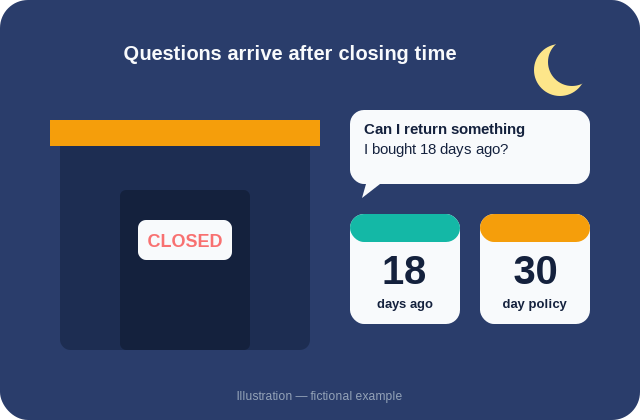
It's 9 PM and your shop is closed. A customer writes: "Can I return something I bought 18 days ago?" Without an answer, they may worry, or leave a bad review. A careless answer, like "Sure, full refund!", could promise something your policy doesn't allow.
This automation answers return questions from your own written return policy, stored in a Google Sheet. The AI never makes up a rule. Simple code does the math: 18 days is within a 30-day window.
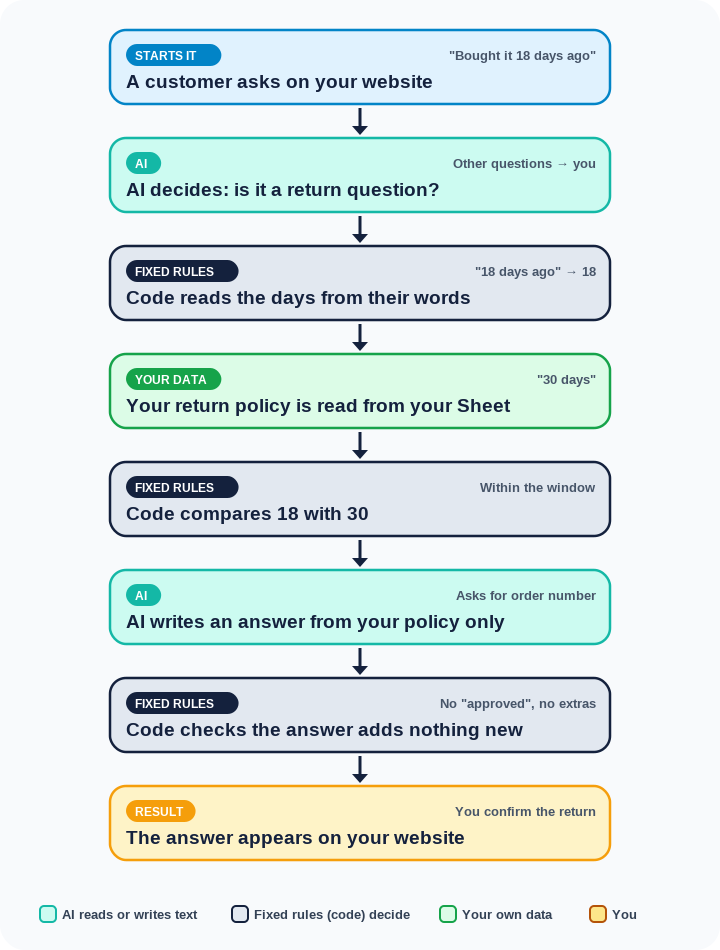
Advanced: what exactly does the answer check reject?
The Check Answer Against Policy step rejects an AI answer that: is empty or longer than 450 characters; doesn't name the window (e.g. "30 days") or the customer's days (e.g. "18 days"); doesn't ask for the order number; or contains words that would add conditions or promises, such as approved, guarantee, receipt, unused, tags, store credit, exchange, fee, verified, condition, or any percentage. Then a fixed answer built only from your policy is used.
Who this is useful for
- Online and local retail shops
- Gift and home-goods stores
- Clothing boutiques
- Bookshops
- Any shop with a simple, written return window
It works best when your policy is simple: "returns accepted within N days". If your policy has many special cases, the automation still answers about the time window only and asks for the order number. You handle the rest.
What you will have when finished
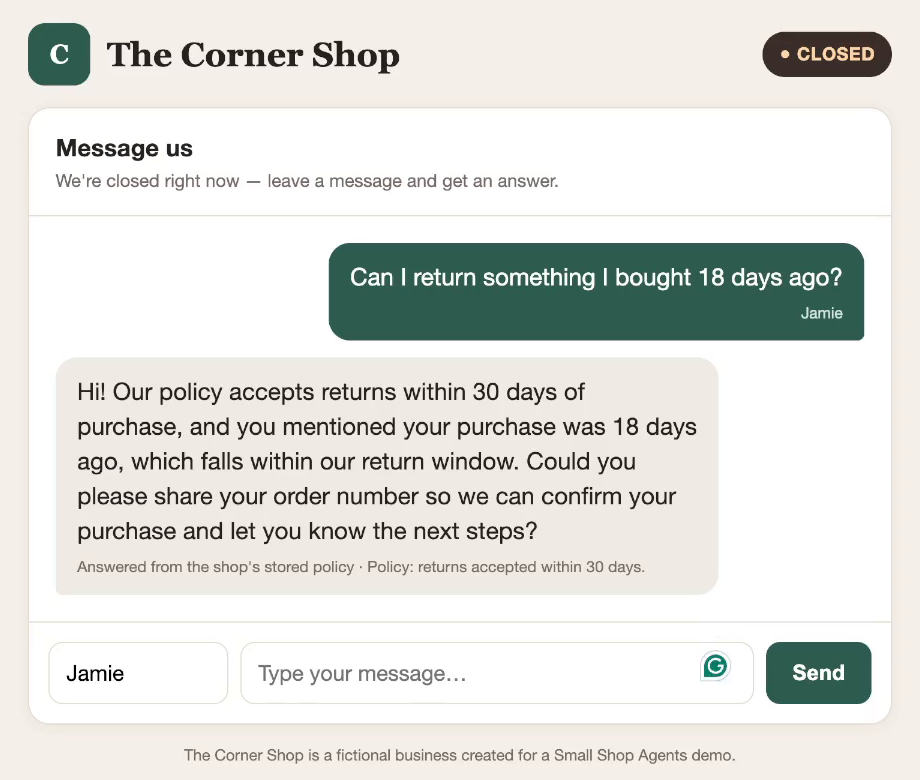
- An "Ask us" box on your website that answers return-window questions in a few seconds, day or night.
- Every other question gets: "Thanks for your message! The shop owner will reply personally."
Before you begin
- An n8n account: n8n Cloud (free trial) or self-hosted. Your website must be able to reach it, which n8n Cloud handles for you.
- A Google account for Google Sheets.
- An Anthropic (Claude) account for the API key.
- Your return policy in one sentence with a number of days, for example "Policy: returns accepted within 30 days."
- A website where you can add an HTML block, for the "Ask us" box. You can test everything without one using our test tool.
Time: About 45–60 minutes the first time (our estimate).
How much it costs
The template itself is free. Running it uses a few services. Some are free and some charge you. Here is every one of them, in plain English.
| Service | Why you need it | Free option? | When might you pay? |
|---|---|---|---|
| n8n Cloud | Runs your automation 24/7 | Free trial, no credit card needed (trial limit: 1,000 runs) | After the trial. Starter is listed at €20/month billed annually for 2,500 runs a month. Pro is €50/month billed annually for 10,000. Paying monthly costs more. n8n pricing |
| n8n on your own computer or server (alternative) | Same automation, run by you | Yes, the community edition is free | For the server it runs on. It must be online all the time and reachable from the internet. This is the more technical option. |
| Claude AI (Anthropic API) | Reads messages and writes short replies | New accounts get some free credits (Anthropic doesn't state the amount) | Pay as you go. Claude Haiku 5.5 is $0.10 per million tokens read and $0.50 per million tokens written (a token is a small piece of a word). One real run of this template cost about $0.0002 (our estimate, see below). Anthropic pricing |
| Google Sheets | Stores your return policy | Yes, with a personal Google account | Only if you choose Google Workspace for your business |
Download the template
A template is a ready-made automation saved as a small file. The file ends in .json, which is simply the format n8n uses to save workflows. You don't need to open or edit it. You'll import it into n8n in the setup steps below.
small-shop-agents-return-policy.json
Free · no sign-up · contains no passwords or personal data · tested with n8n 2.48.7
See exactly what we tested in our template testing report.
Step-by-step setup
Create the "Return Policy" tab in Google Sheets
- Open sheets.new (or a sheet you already use) and add a tab named exactly
Return Policy. - Copy this block, paste it into cell A1, then change the policy to yours:
key value policy_text Policy: returns accepted within 30 days. return_window_days 30 note My shop return policyColumn A B Row 1 (headers) keyvalueRow 2 policy_text Policy: returns accepted within 30 days. Row 3 return_window_days 30 Row 4 note My shop return policy 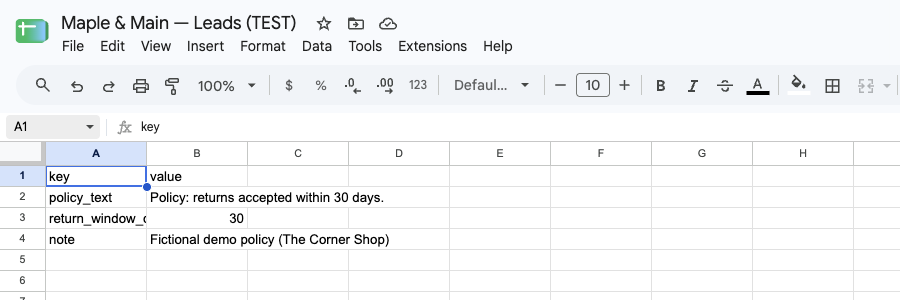
Real result Our test tab (fictional policy). - Open sheets.new (or a sheet you already use) and add a tab named exactly
Open n8n (or create a free n8n Cloud account)
n8n is the program that runs your automation. Think of it as a very reliable assistant that follows a checklist every time something happens.
- If you don't have n8n yet: go to n8n.io and start the free n8n Cloud trial. You don't need a credit card. Pick a name for your account when asked. It becomes part of your n8n address, for example
yourshop.app.n8n.cloud. - If you already use n8n: just sign in.
You'll land on the Overview page, which lists your workflows. A workflow is n8n's word for one automation.
- If you don't have n8n yet: go to n8n.io and start the free n8n Cloud trial. You don't need a credit card. Pick a name for your account when asked. It becomes part of your n8n address, for example
Import the template
- Click the Create workflow button in the top-right corner of the Overview page. An empty canvas opens.
- Click the three dots (⋯) next to the workflow name at the top.
- Point to Import, then click From file.
- Choose
small-shop-agents-return-policy.jsonfrom your Downloads folder. - If n8n asks "Importing this from an AI tool?", click Skip.
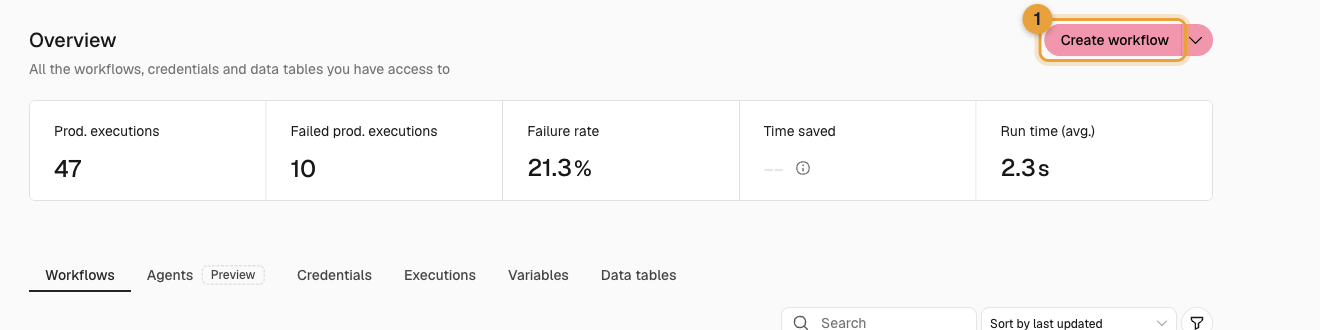
Real screenshot ① Click Create workflow. (n8n 2.48.7. Your list of workflows will be empty at first.) 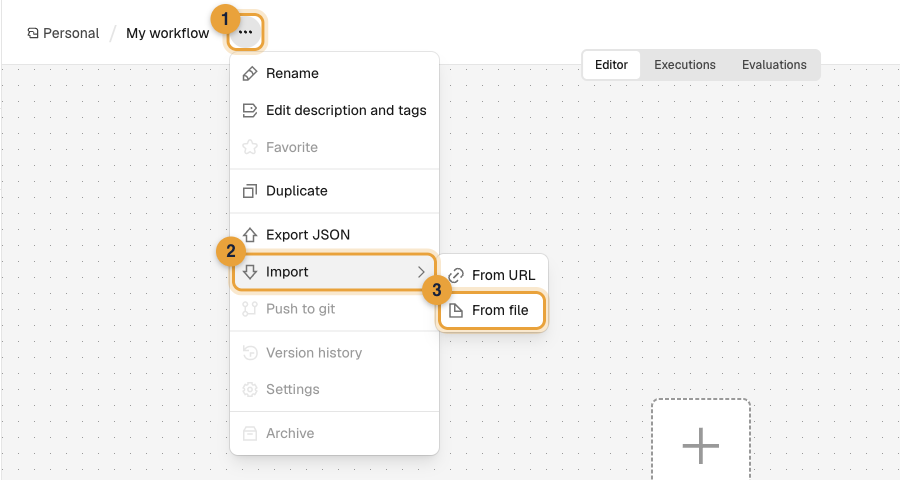
Real screenshot ① Three dots → ② Import → ③ From file. 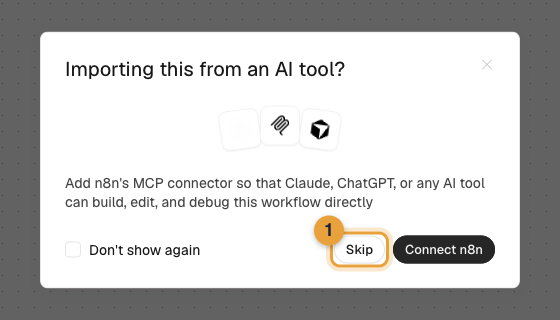
Real screenshot If this question appears, click ① Skip. You don't need it for this guide. 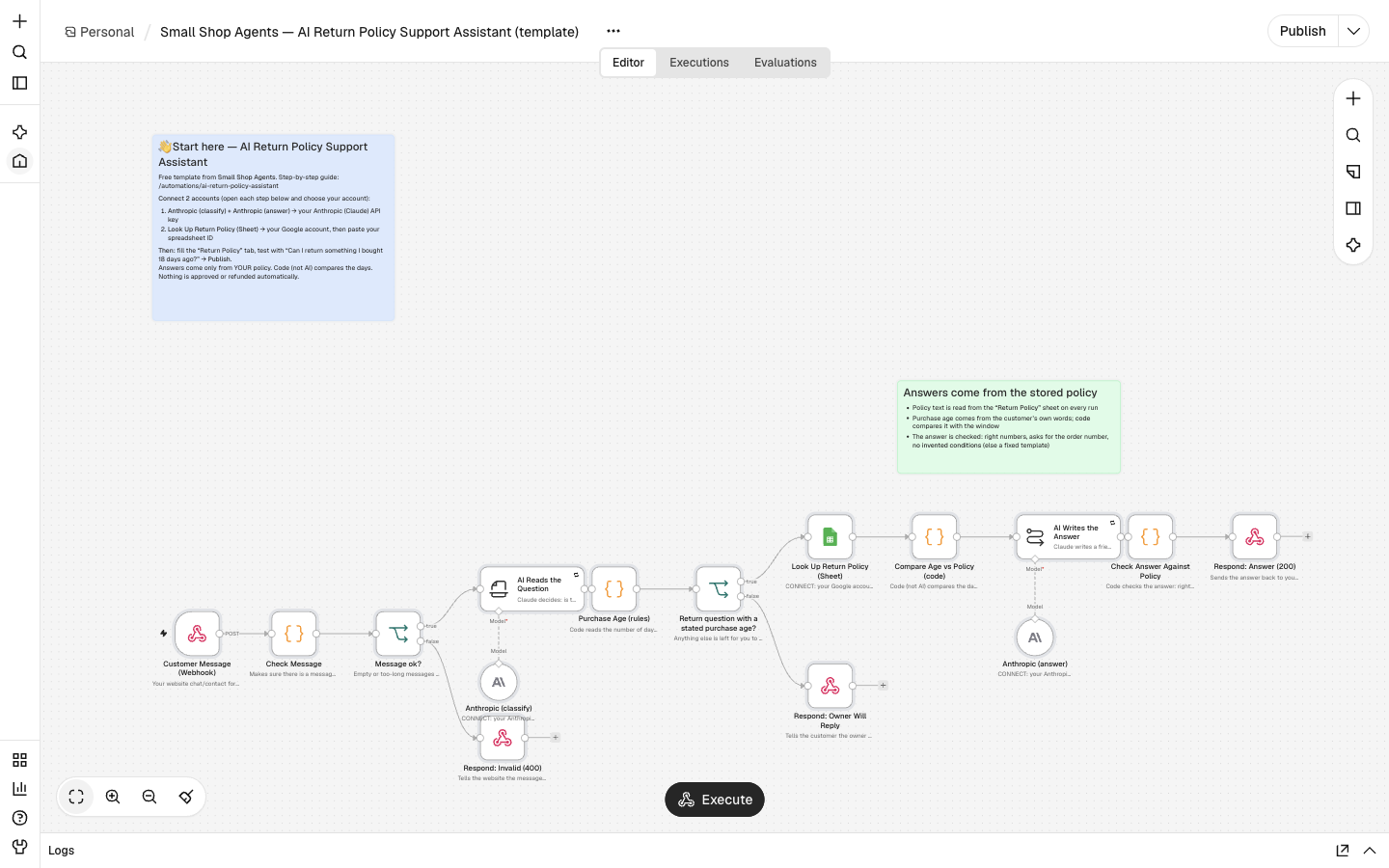
Real screenshot The template is now on your canvas. The blue Start here note lists what to connect. Each box is one step, and the grey text under each box says what it does. Connect the AI (Claude)
The AI steps need permission to use Claude. That permission is an API key (a long secret password that lets one program use another. Treat it like a bank PIN).
A. Create the key
- Go to platform.claude.com and sign up or sign in.
- Open Settings → API keys and click Create key. Name it n8n shop automations.
- Copy the key. It starts with
sk-ant-. You'll paste it into n8n in a moment. Don't paste it anywhere else. - If Anthropic asks you to add billing, follow their steps. New accounts get some free credits.
B. Add the key to n8n
- On the canvas, double-click the round Anthropic (classify) step.
- Click the Credential box at the top and choose Create new credential.
- Paste your key into API Key, then click Save. n8n stores it encrypted. It never appears in your template file.
- Double-click Anthropic (answer) and choose the same credential in its Credential box.
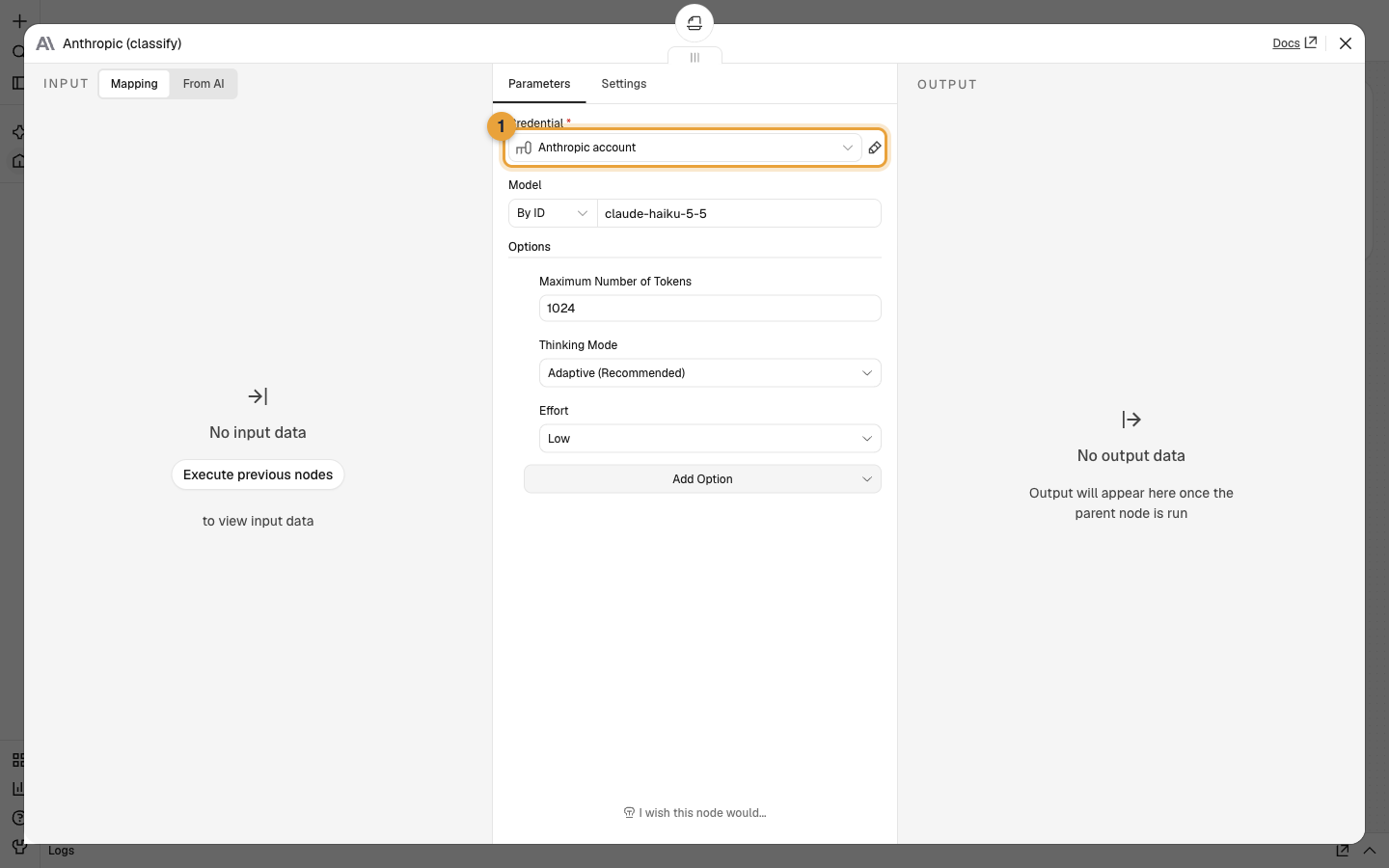
Real screenshot ① The Credential box of the Anthropic (classify) step. (On our test computer an account was already connected. Yours will be empty until you create one.) 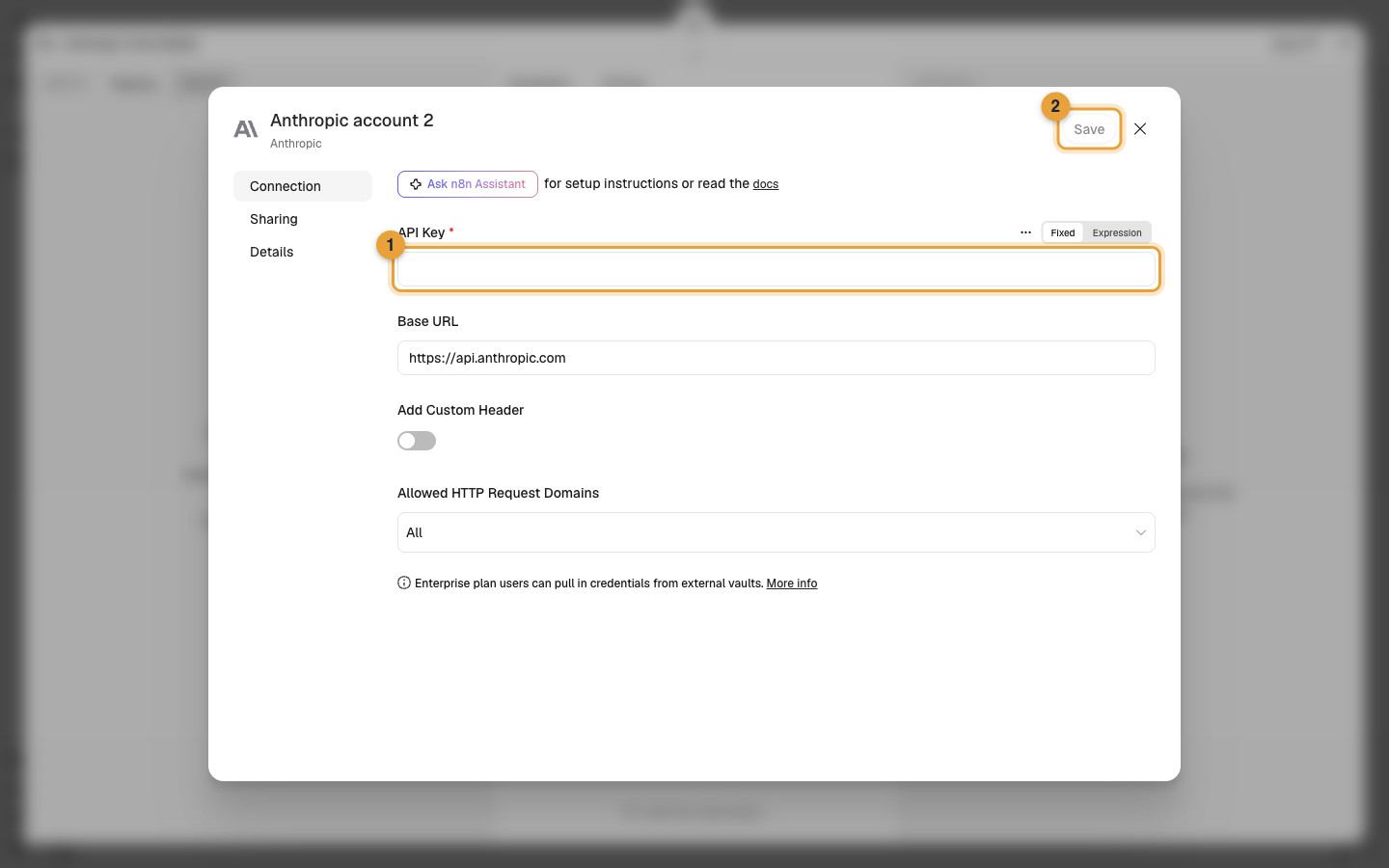
Real screenshot ① Paste your key into API Key, then ② click Save. The field in this screenshot is empty on purpose. Never share a picture of your real key. Connect your Google account (Google Sheets)
Each Google step needs your permission to use your Google account. On n8n Cloud this is quick: n8n's docs describe it as "Sign in with Google directly on n8n, with no setup required on the Google Cloud Console."
- Double-click the Google step named below, click the Credential box and choose Create new credential.
- Click the button to sign in with Google. A Google window opens.
- Pick the Google account that owns your spreadsheet, then click Allow on the permissions page. You type your Google password only into Google's own window, never into n8n.
- Back in n8n, you'll see a success message. Close the credential window.
Tell the Google Sheets step which spreadsheet to use
Every Google spreadsheet has an ID, a long code in its web address. Here's how to copy it:
- Open your spreadsheet in Google Sheets. Look at the address bar:
docs.google.com/spreadsheets/d/1AbC…xyz/edit - Copy only the part between
/d/and/edit. That's the ID. - In n8n, double-click the Look Up Return Policy (Sheet) step.
- Check that ① Credential shows your Google account.
- In ② Document, replace
PASTE_YOUR_SPREADSHEET_ID_HEREwith your ID. - Check that ③ Sheet says
Return Policy, exactly the name of your tab.
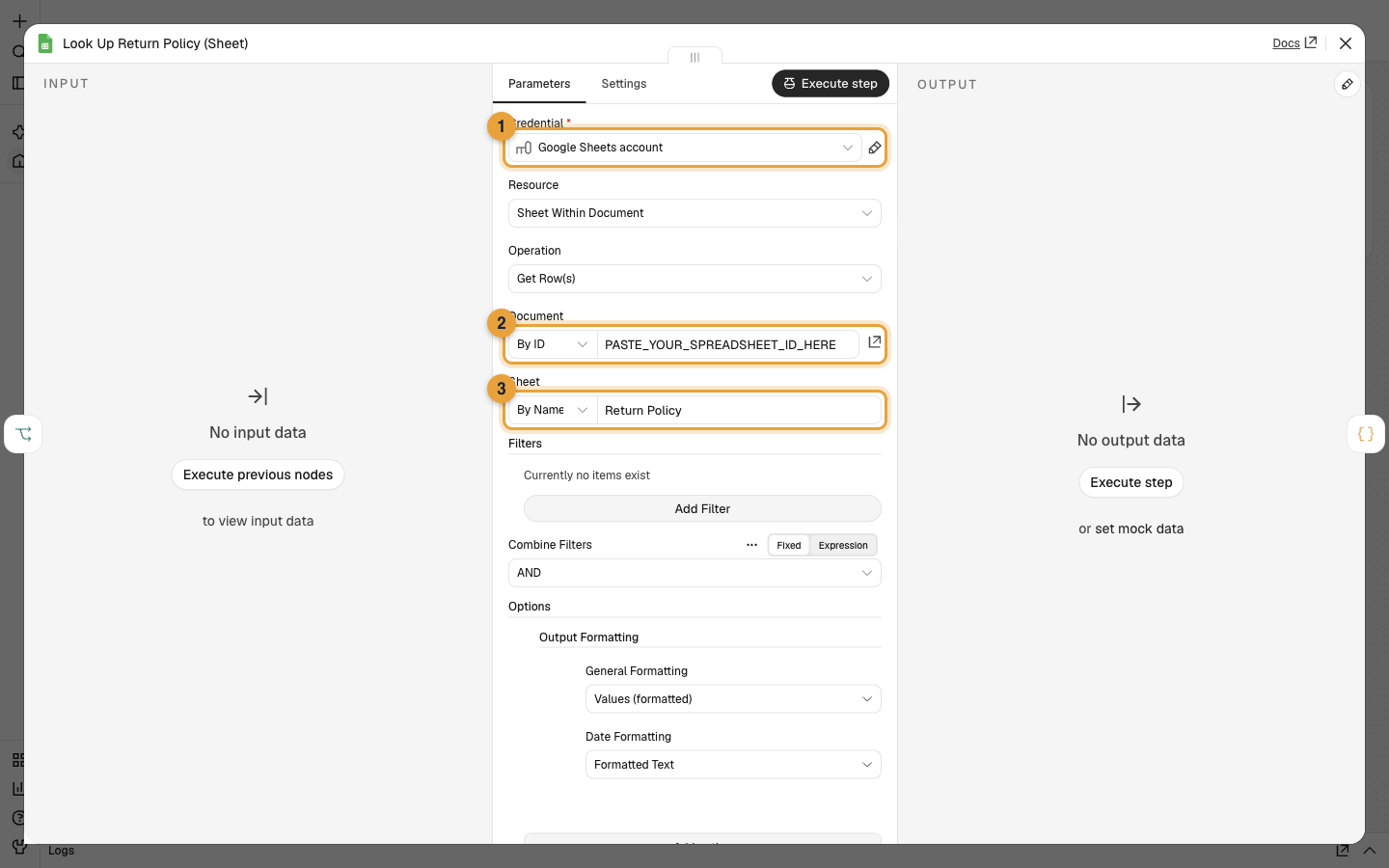
Real screenshot ① Your Google account · ② the spreadsheet ID · ③ the tab name. - Open your spreadsheet in Google Sheets. Look at the address bar:
Put your shop name into the answer (optional)
Double-click AI Writes the Answer. In the large text box that starts with "Write a short, friendly…", replace The Corner Shop (our fictional demo shop) with your shop's name. Change nothing else. The rules in that text keep the answer safe.
Copy your webhook address
Your website's "Ask us" box sends each question to a webhook (a private web address that works like a mailbox: whatever is posted to it starts your automation).
- Double-click Customer Message (Webhook).
- Click Webhook URLs. Use the Test URL for testing and the Production URL for your website.
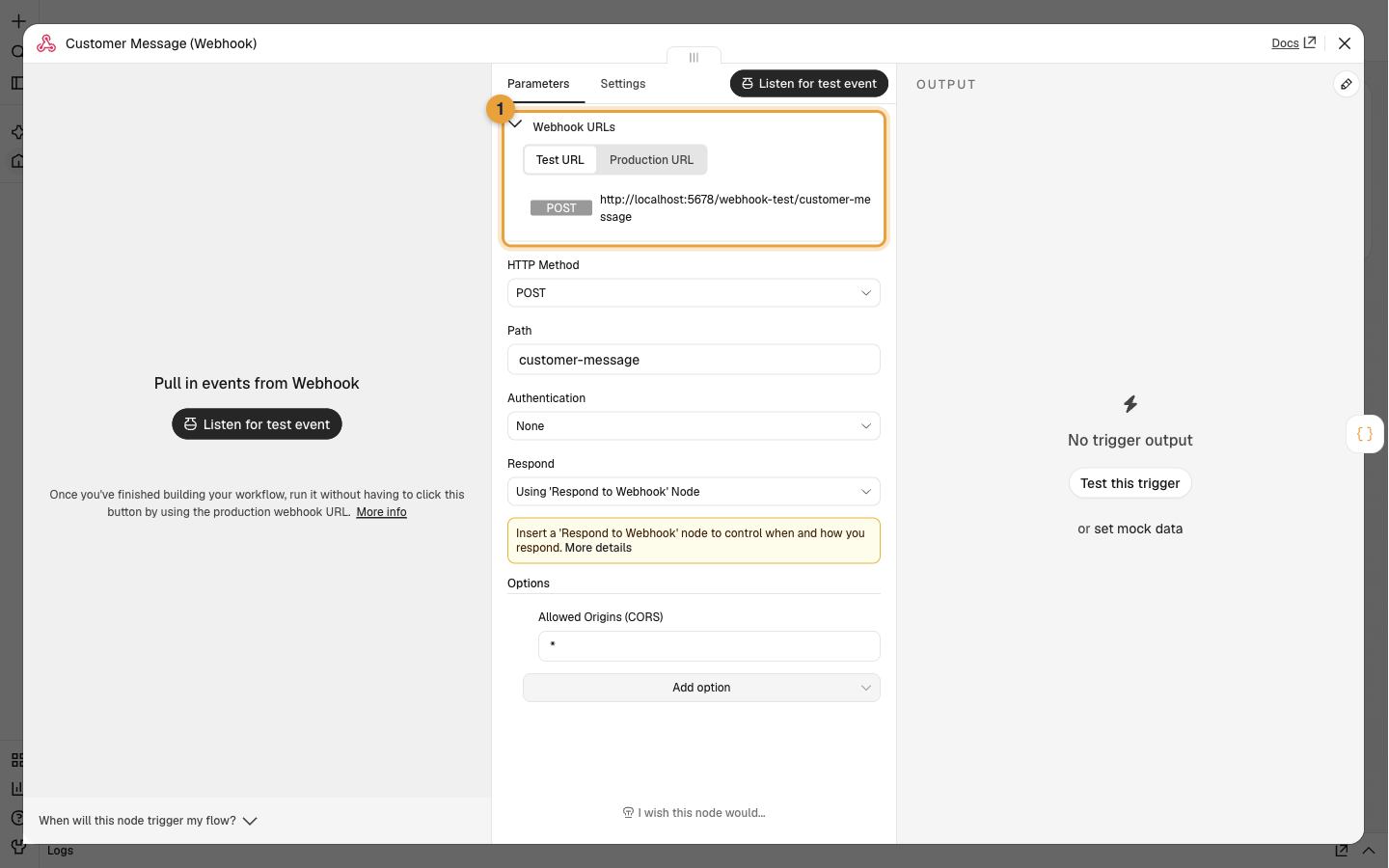
Real screenshot ① The two addresses. On n8n Cloud they look like https://yourshop.app.n8n.cloud/webhook/customer-message.
Test your automation
Make n8n listen
Click the Execute button at the bottom of the canvas. n8n now waits for one test message on the Test URL.
Send the sample question
Open Send a Test Message, paste your Test URL and send "Can I return something I bought 18 days ago?"
Test "outside the window"
Click Execute again and send the second sample, "…a candle I bought 45 days ago?" The answer should say it's outside the 30-day window, still politely, and still asking for the order number.
Test a non-return question
Send "Do you sell gift cards?". You should get "The shop owner will reply personally."
Test a missing policy (on purpose)
In the Look Up Return Policy (Sheet) step, change the tab name to something that doesn't exist, then send the 18-day question. The run should fail with an error, and no answer should be invented. Change the tab name back afterwards.
What success looks like
These are the real answers from our tests of this exact template (fictional shop and customer):
18 days · within
"Hi! Our returns policy accepts returns within 30 days, and you mentioned your purchase was 18 days ago, which falls within our return window. Could you please share your order number so we can confirm your purchase and let you know the next steps?"
n8n execution #49, Nov 23, 2026
45 days · outside
"Hi! Our returns policy accepts returns within 30 days of purchase, and you mentioned your candle was bought 45 days ago, which falls outside that return window. Could you please share your order number so we can confirm the purchase details and let you know the next steps?"
n8n execution #50, Nov 23, 2026
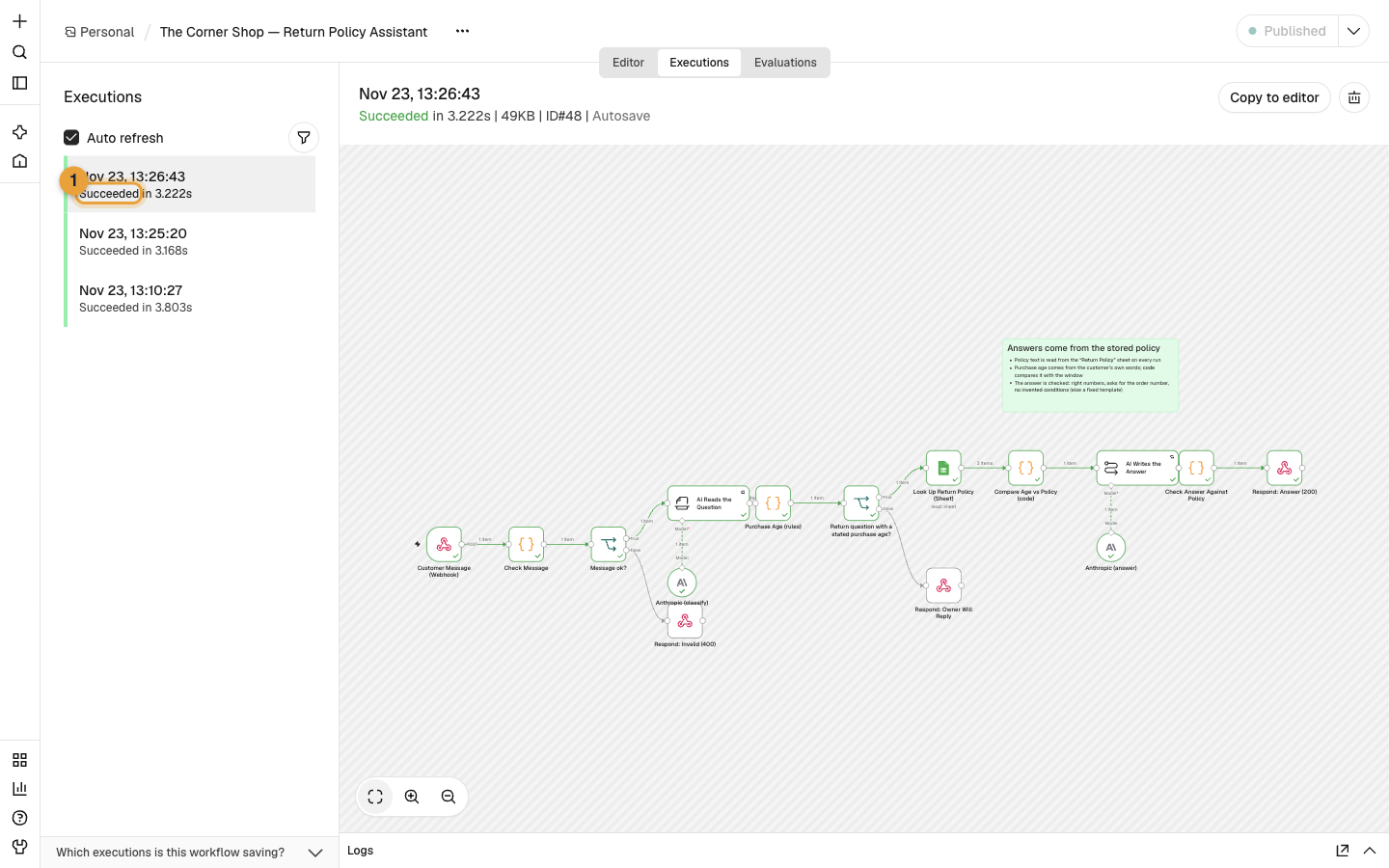
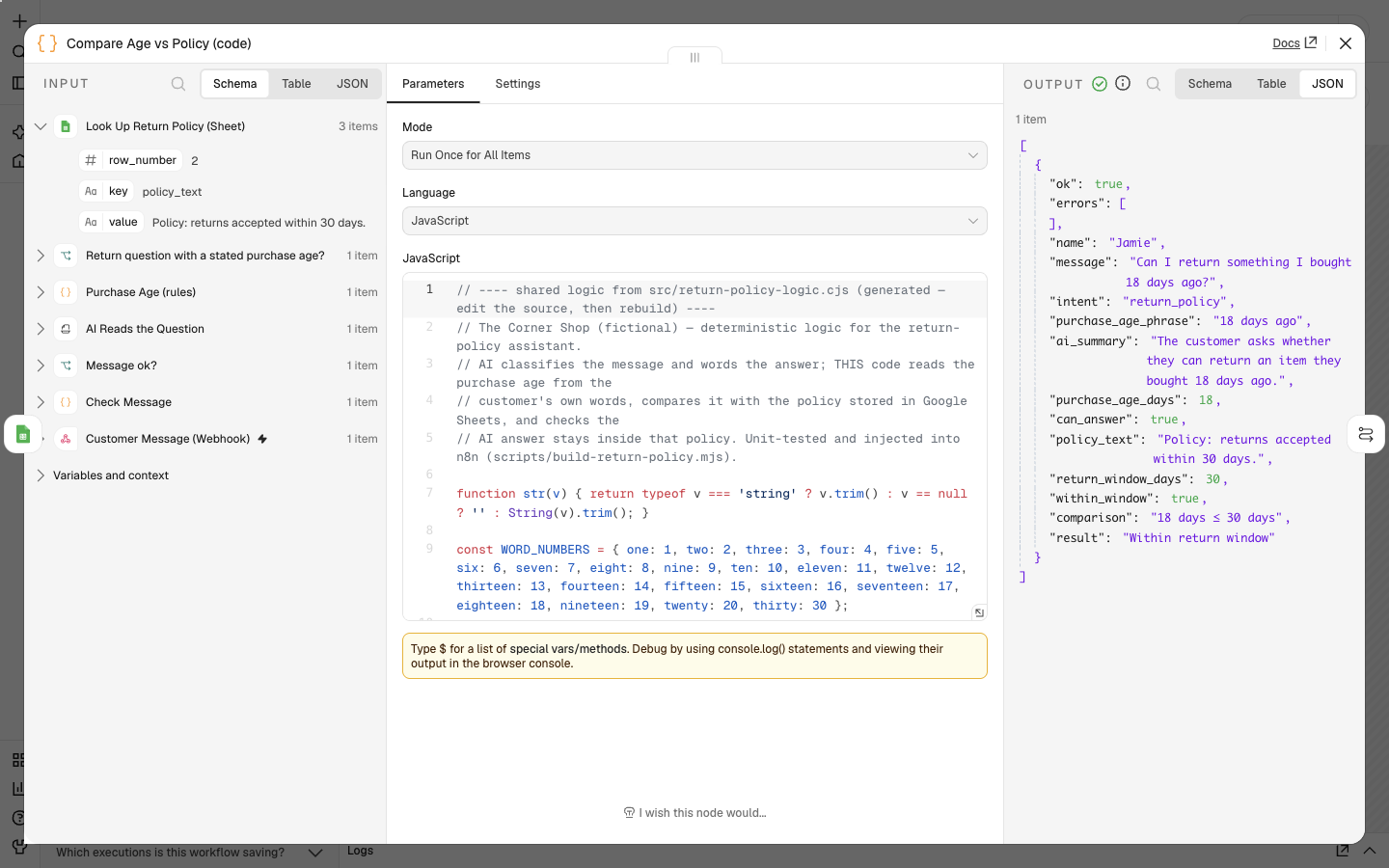
18 days ≤ 30 days, worked out by code.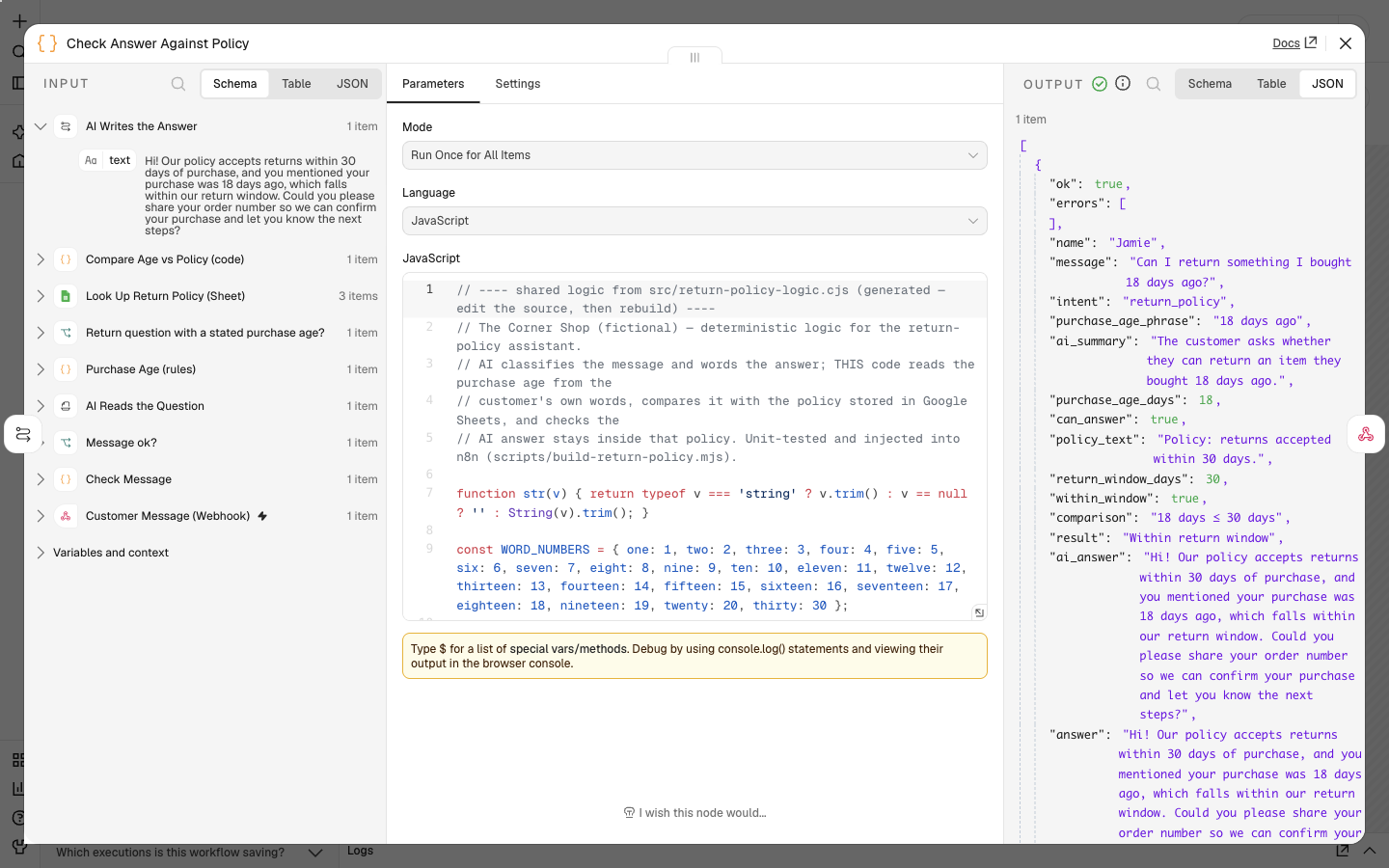
answer_problems: [] means the AI answer passed every check.Troubleshooting
- Error: "Return policy not found in the sheet — refusing to answer".
- Check the tab name (
Return Policy), the headingskeyandvalue, and thatpolicy_textandreturn_window_daysname the same number of days. - Every question gets "The shop owner will reply personally".
- That happens when the message isn't a return question, or doesn't say when the item was bought. The automation understands "18 days ago", "two weeks ago" and "yesterday". Questions like "I bought it on May 3" are left for you on purpose.
- The answer looks like a fixed sentence, not a friendly AI reply.
- That's the safety fallback: the AI's answer didn't pass the checks. The output shows
answer_source: "template_fallback". - The website box says "we couldn't answer right now".
- Open Executions in n8n to see the failed step. Also check that the workflow is published, the address in the box is the Production URL, and Allowed Origins (CORS) allows your website.
- "The requested webhook is not registered".
- For the Test URL, click Execute first. For the Production URL, publish the workflow.
How to turn the automation on
Turn it on: click Publish
While you build, the automation only runs when you test it. To make it run on its own, all day, every day:
- Click Publish in the top-right corner of the canvas.
- Confirm in the window that opens.
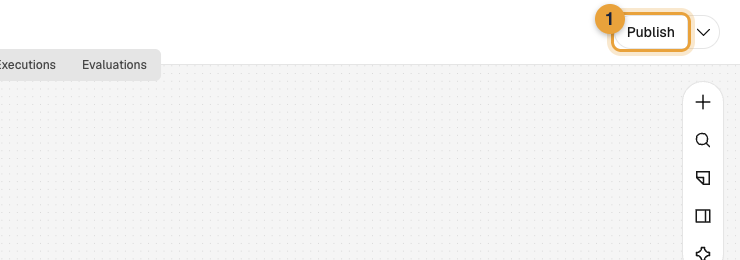
Real screenshot ① Publish switches your automation on. (Older n8n versions called this "Activate".) To switch it off later, open the same menu next to Publish and unpublish it.
Add the "Ask us" box to your website
Paste this into an "HTML", "Code" or "Embed" block, then replace
PASTE_YOUR_PRODUCTION_URL_HEREwith your Production URL:<!-- Small Shop Agents: "Ask us" box. Paste into an "HTML / Embed" block on your website. --> <div id="ssa-ask"> <label for="ssa-question">Ask us a question</label> <textarea id="ssa-question" placeholder="Can I return something I bought 18 days ago?"></textarea> <button type="button" id="ssa-send">Send</button> <p id="ssa-answer" role="status"></p> </div> <script> const SSA_URL = "PASTE_YOUR_PRODUCTION_URL_HERE"; document.getElementById("ssa-send").addEventListener("click", async () => { const message = document.getElementById("ssa-question").value.trim(); const out = document.getElementById("ssa-answer"); if (!message) return; out.textContent = "Checking our policy…"; try { const r = await fetch(SSA_URL, { method: "POST", headers: { "Content-Type": "application/json" }, body: JSON.stringify({ message }) }); const d = await r.json(); out.textContent = d.reply || "Thanks! We'll reply soon."; } catch { out.textContent = "Sorry, we couldn't answer right now. Please e-mail us and we'll reply personally."; } }); </script>Lock the address to your website
In Customer Message (Webhook) → Options → Allowed Origins (CORS), replace
*with your website address, for examplehttps://www.yourshop.com, and publish again.
How to keep it working
- Look at Executions once a week. Open your workflow and click the Executions tab at the top. Green means it worked. Red means a step failed. Click a red one to see which step and why.
- Reconnect Google if it stops. If a Google step fails with "unauthorized" or "invalid grant", open the step, click the credential and sign in with Google again.
- Watch your AI credits. In the Claude Console you can see what you've used and set a spending limit. If credits run out, the AI steps fail.
- Watch your n8n run count in your n8n account, especially in your first month.
- Update your sheet, not the workflow. When your policy changes, change the sheet. Update both the text and the number of days.
- Get an e-mail when something fails (optional): n8n can run an "error workflow" that alerts you. See n8n's error handling guide.
Security and privacy
- Keep keys inside n8n. Paste API keys only into n8n's credential window. Never e-mail them, put them in a spreadsheet, or show them in a screenshot or video.
- Exported files are safe to share. When you download a workflow, n8n leaves your credentials out. Still, check for e-mail addresses you typed into steps.
- Customer messages are untrusted text. The templates tell the AI to only read and classify them and to ignore any instructions inside them. The important decisions are made by fixed rules, not by the AI.
- Collect only what you need. Don't ask customers for card numbers, passwords or ID numbers in your forms.
- Tell customers. Mention in your own privacy policy that messages are processed by automation tools (n8n, Google, Anthropic).
- Use a test sheet first. Make a copy called "(TEST)" while you try things out.